COPYCAT DESKTOP
Across your Mac.
Record screen workflows and use browser and native desktop tools. For Apple Silicon Macs with macOS 14 or newer.
 CopyCat
YOUR WORK. WITH LESS REPETITION.
Record a workflow on your Mac or in Chrome. Review the instructions CopyCat creates, then put AI to work the next time the task comes around.
A desktop app and a Chrome extension for the things you do again and again.
A LITTLE LESS AGAIN. A LITTLE MORE DONE.
COPYCAT FOR CHROME
Record browser actions and screenshots without leaving Chrome. Review the instructions, run the automation, or turn your workflow into a tutorial or skill.
Get CopyCat for ChromeAvailable on the Chrome Web Store · Chrome 125 or newer
Use your CopyCat account and shared credit balance in both products. AI analysis and automation use credits; optional AI narration uses purchased credits only.
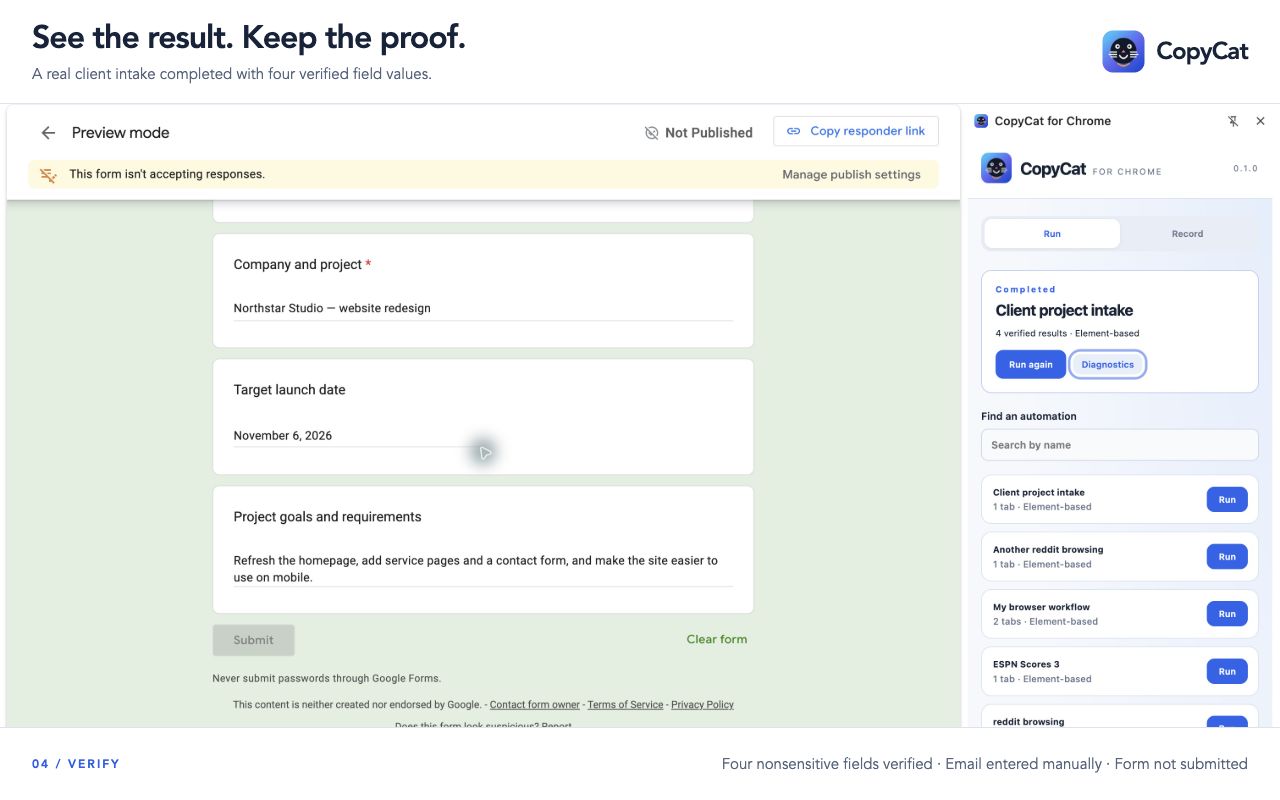
FROM A MANUAL TASK TO A REUSABLE WORKFLOW
Inside the desktop app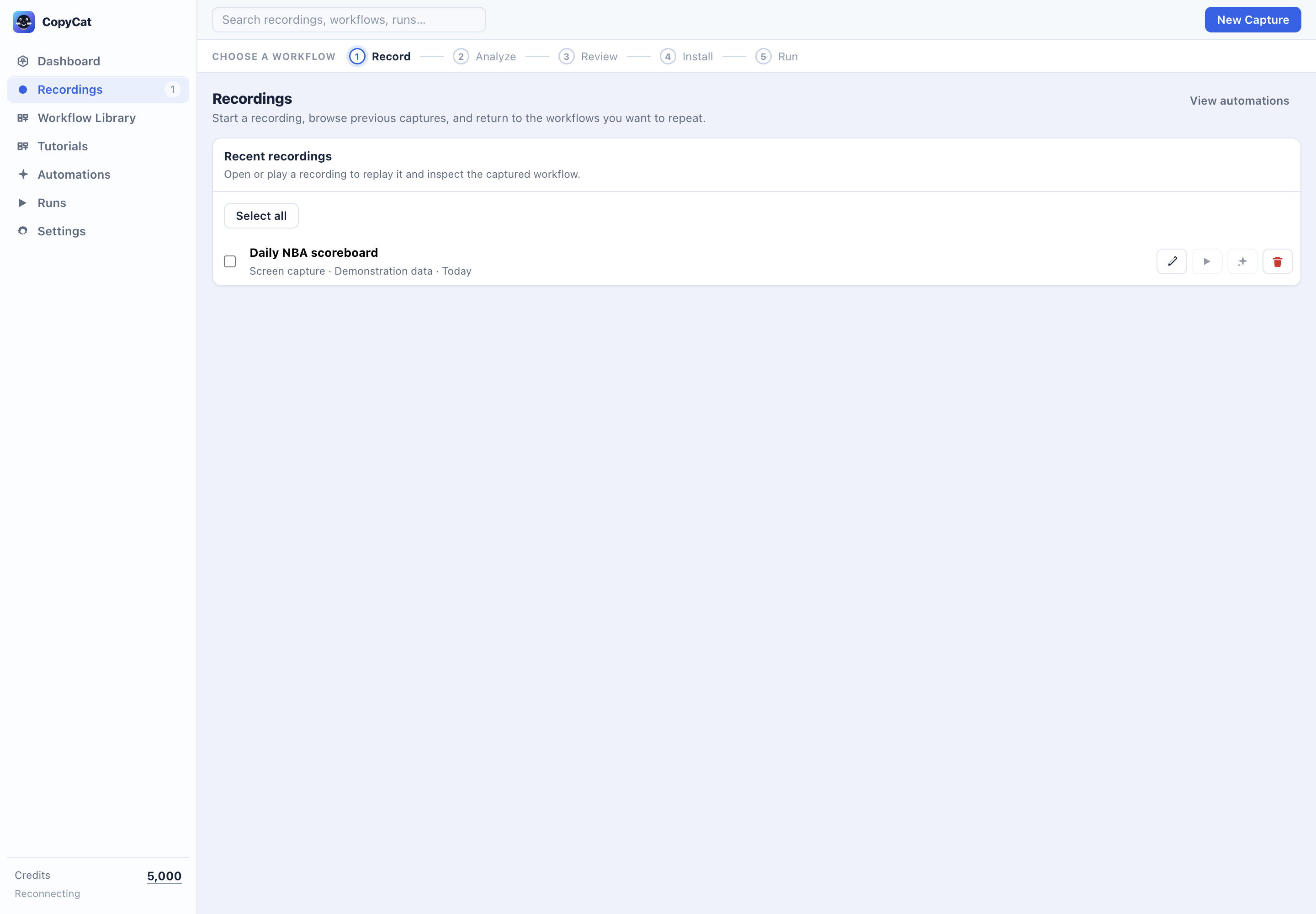
YOU SHOW THE STEPS. COPYCAT MAKES THEM REUSABLE.
Record the browser or desktop task you want to repeat. Avoid recording passwords and sensitive information.
AI turns your demonstration into a draft. Check the steps, clarify your goal and make your edits.
Save an automation and follow its activity. Approve requested access, answer questions, pause or stop.
THE ROUTINES THAT KEEP COMING BACK.
Open the same browser view and gather the information you check each day.
Demonstrate an app workflow, then ask CopyCat to repeat your intended task.
Keep the instructions for a recurring browser task, ready to review and reuse.
Examples of tasks to demonstrate. Results depend on the task, available access and model; verify the outcome.
ON YOUR COMPUTER. IN YOUR FLOW.
Keep recordings, saved instructions and run history together. Browser and native desktop tools work within the access you approve. Learning suggestions need your explicit review and apply to future runs.
MORE FROM THE WORK YOU ALREADY KNOW.
In the desktop app and Chrome extension, turn a saved workflow into a tutorial or export its instructions for your AI tools.
TUTORIALS
Build an editable guide from your workflow steps and screenshots. Share a document, presentation or video.
PDF · Word (DOCX) · PowerPoint (PPTX) · MP4
Review the steps and screenshots before exporting.
AI NARRATION
Add optional AI narration to your tutorial video. Choose Marin or Cedar and review the script before generation.
Marin · Cedar · Narrated MP4
Narration uses purchased credits only. Free trial credits do not cover narration.
SKILL EXPORTS
Export for Claude Code, Codex, OpenCode, ChatGPT Work, Claude / Cowork and Microsoft Copilot / Cowork.
SKILL.md · Markdown commands · Skill ZIPs · Plugin bundles
Desktop can write local harness files. Chrome downloads files or bundles for manual installation.
Exports carry workflow instructions. Your receiving AI tool needs its own account, tools and permissions to perform the task.
DESKTOP + CHROME + COMPANION PORTAL
Analysis and automation use prepaid CopyCat credits. Connect the desktop app or Chrome extension to your account, check your balance and buy credits in the portal.
Open the credit portalUsage varies by model and task. Failed or stopped work can consume credits for usage already incurred.
CopyCat is available for Apple Silicon Macs with macOS 14 or newer. This is an early public release; see the release notes for validation coverage.
Yes. CopyCat for Chrome is an independent extension for browser workflows. Install it from the Chrome Web Store and connect your CopyCat account. Browser and desktop libraries are stored separately; requested AI work uses prepaid credits.
No. Recordings and workflow data are kept locally, but selected recording frames, instructions and tool observations are sent through CopyCat’s hosted services to model providers when you request AI work.
Start by demonstrating a task. Review the generated instructions before running; you can edit them without writing an automation script.
On Mac, action approval is on by default; you can enable YOLO in Settings. In Chrome, YOLO is on for new, unset preferences and automatically approves routine actions and task website access after Chrome grants the optional website permission. Turn YOLO off in Account & settings to approve actions and task access yourself. Saved choices are retained. Both products let you pause or stop; sign-in and essential questions still need your attention. Desktop learning suggestions require explicit review and apply only to future runs.
MAKE A LITTLE ROOM FOR WHAT COMES NEXT.